Share this article! Here's a short link you can use: http://im.vu/help1111
Ready to put your styling skills to the test? Outfit Challenges are your chance to show off your creativity, discover new looks, and compete for rewards. Each challenge brings a fresh theme—from cozy fall vibes to red carpet glamour—and it’s up to you to create the perfect look.
Use items from your own closet or discover new pieces from the Event Shop, submit your outfit, vote for your favorites, and even shop directly from looks you love.
Styling for Outfit Challenges
Outfit Challenges let you bring each theme to life with your personal style. Every challenge includes a specific theme and may include special requirements.
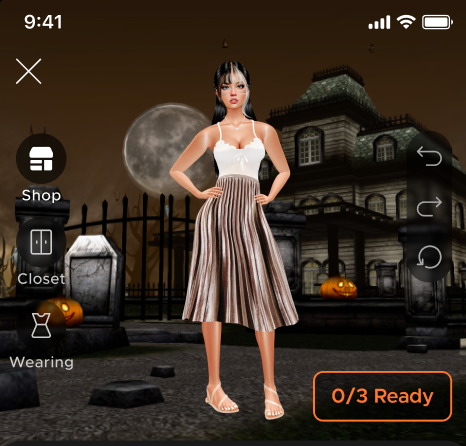
How to Style Your Avatar
1. Open the Challenge
Tap the challenge you want to join.
- Review the challenge card, which will include:
- The theme and requirements.
- The seasonal leaderboard applicable to the challenge.
- The type of reward.
2. Check the Requirements
Some challenges require a specific color, style, or item from the Event Shop.
A checklist updates as you meet each requirement (e.g., 0/3 Ready).
All requirements must be completed before you can submit your look.
Some requirements call for a specific curated product (e.g., a specific pair of sunglasses).
3. Dress Up Your Avatar
Browse your Inventory to use your existing items.
- Switch seamlessly to the Event Shop if you need something new.
- Add to Wishlist: Easily add items from the Event Shop to your Wishlist before submitting your outfit.
4. Mix and Match
Experiment with combinations using undo, redo, reset, and item toggling.
View everything you’re wearing in the “Wearing” section for easy editing.
5. Preview Your Outfit
Choose how your avatar will appear in voting.
Select your pose.
There's a toggle above your avatar that lets you save this outfit to your Saved Looks.
Final results appear as a static 2D image.
6. Submit Your Outfit
Once you're satisfied, submit your styled look.
You can submit multiple submissions to the same challenge.
Tips for Styling
Use filters, search, and sorting tools to quickly find items in your Inventory or the Event Shop.
Stay on-theme to improve your chances of receiving higher scores.
Easily see what you’re wearing and toggle products on and off in the “Wearing” section in Dress Up.
Make sure you have everything you need before entering the challenge–progress won’t be saved if you leave the challenge.
View the challenge card beforehand to see all requirements and rewards before you begin styling.
Outfit Challenge Content Restrictions
To keep Outfit Challenges appropriate for all audiences, the following restrictions shall apply to all submissions. Entries that violate these restrictions may be removed and disqualified from earning rewards. IMVU reserves the right to modify these restrictions over time at its discretion.
Submissions must not include:
Logos, branded, or copyrighted products or materials.
Alcohol, alcohol branding, cigarettes, or illicit substances. Drinkware is allowed unless they clearly depict or promotes alcohol.
Hate symbols or discriminatory imagery.
Nudity, sexualized, or sexually suggestive content.
Visible nipple or nipple ring marks.
Excessive bulges or defined shapes in male pants.
Lingerie or underwear, including items visible above or below clothing.
Furry avatars in flesh-toned colors or with body outlines resembling nudity.
Violence or implied violence.
Excessive blood or gore.
Profanity on clothing, products, or tattoos.
Any imagery that violates IMVU’s Terms of Service, Community Guidelines, or Virtual Goods Policy.
Styling Scoring, Results, and Rewards
Scoring
Outfits are scored based on player voting.
Voting is head-to-head: players choose between two outfits.
Final scores appear as a star rating out of 5 (e.g., 3.89★).
Scores are rounded down when determining rewards.
You will only be rewarded for and see in your results, your top-scoring submission for that challenge.
Results
You’ll be notified when results are ready.
Past challenges can be revisited at any time to view your scores.
Rewards
Rewards are cumulative.
Example: If you earn 4 stars, you also receive rewards for 1, 2, and 3 stars.
Scores are rounded down when calculating rewards.
- Rewards must be claimed after a challenge's results are completed.
- Check the Results tab for the 'New' badge on your outfit. Tap the image to view your score and claim your reward.
Voting on Outfits
After styling, you can help decide which looks stand out by voting.
How Voting Works
You’ll see two outfits from the same challenge and select your favorite.
For a closer look, tap the magnifying glass under an outfit to zoom in and see more.
You can cast up to 50 votes and earn a reward for every 5 votes.
You may continue voting beyond 50, but no additional rewards are granted.
Each vote helps determine the final score of the outfits shown.
Voting Rewards
Voting Rewards: Earn rewards for every 5 votes you cast, up to a total of 50 votes.
Fair Voting
The system balances which outfits appear, showing a variety across scores and styles.
Anti-spam protections are in place. Voting too quickly may result in temporary restrictions (up to 24 hours).
Usernames are hidden during voting for anonymous and fair scoring.
Runway Passes and How They Work
Runway Passes are required to submit outfits. There are two types: Passes and Power Passes.

Passes
Granted passively over time and used for submissions.
You can hold up to 25 at a time.
They replenish automatically over time (similar to an energy system).
One Runway Pass refreshes every 10 minutes until you reach 25.
Power Passes
Act as a backup to Passes.
Earned through voting and challenge rewards, or can be purchased.
There is a voting reward limit for Power Passes.
Used only when you’re out of Passes.
No maximum limit.
How Runway Passes Work With Submissions
Each challenge requires a set number of passes to submit.
Additional submissions to the same challenge cost 15 more passes than the previous one.
Example: If your first entry costs 25 passes, your second will cost 40 (25 + 15).
Passes are used first; Power Passes follow.
If you run out of passes, you may purchase more.
Your styling progress is saved only when prompted to purchase additional passes. Leaving the challenge—for example, to vote—will not save your outfit.
Top Trendsetters (Leaderboard)
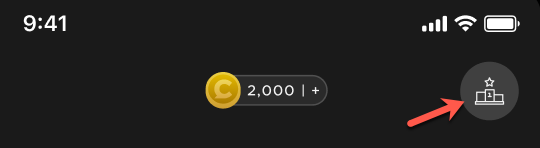
Compete against others and rise through the seasonal rankings.
Leaderboards are broken into seasons, showing how you stack up during each series of challenges.
Each submission you enter— including repeat entries for the same challenge—contributes to your overall leaderboard score.
Submitting multiple entries can improve your total points and help you climb the leaderboard.
Track your placement across all challenges.
Earn special rewards as a Top Trendsetter.
To see which challenges contribute to a leaderboard, check the challenge card.
Get inspiration by looking at other users’ top submissions of the season.
Tap the trophy icon to view leaderboard rewards.
A gift box icon indicates a finished season with rewards ready to collect. Tap on it to claim your rewards.
Leaderboards expire and cannot be viewed afterward, but rewards remain claimable.
If a submission is flagged and removed for violating content guidelines, it will be hidden and excluded from your leaderboard score.
Reporting Products and Outfits
If you find an item in the Event Shop or an outfit during voting that seems inappropriate, you can report it directly from your screen. All reports are sent to our moderation team for review.
Event Shop Reporting
Long-press the item you’d like to report.
Tap Report Product.
Select the reason for the report.
Tap Submit to complete the report.
Outfit Reporting (Voting Screen)
Tap the magnifying glass below the outfit you’d like to report.
Tap the three dots in the upper-right corner.
Tap Report Outfit.
Tap Submit to complete the report.
If you changed your mind, tap View Look in the upper left corner. This will return you to the voting screen so you can cast your vote.
Leaderboard Reporting
Long-press the submission you’d like to report.
Tap Report Submission.
Tap Submit to complete the report.
Was this article helpful?
That’s Great!
Thank you for your feedback
Sorry! We couldn't be helpful
Thank you for your feedback
Feedback sent
We appreciate your effort and will try to fix the article